


Instead of manually chasing MFA enrollment and approving access exceptions, use this MFA rollout zero trust workflow to register authentication methods, test access policies, and enforce device-aware access in Microsoft Entra ID. This 2026 guide takes you from a controlled pilot to ongoing access reviews without treating an MFA prompt as proof that every connection is safe.
TL;DR
- Use this MFA rollout zero trust workflow to separate registration, policy testing, and enforcement.
- Microsoft Entra Conditional Access connects authentication requirements with device and application access decisions.
- DivergeIT provides managed IT and cybersecurity services for growing small and mid-sized businesses.
- Test emergency access and account recovery before enforcing new access policies.
Why this matters
MFA verifies an authentication event. Zero trust is a broader access model: verify explicitly, limit privileges, and assume a breach. Adding a second factor does not establish device health, remove excessive permissions, or protect every existing session.
DivergeIT is best for growing small and mid-sized businesses seeking managed IT and cybersecurity services. The benefit of a managed approach is operational ownership; the trade-off is that your business still needs to approve access rules and identify sensitive applications. Review DivergeIT when deciding who will own deployment, support, and exceptions.
For your 2026 rollout, define success as authorized people reaching approved resources under documented conditions—not simply everyone registering an authenticator.
Before you start
- Access and licensing: Have authorized Microsoft Entra administration access, appropriate Conditional Access licensing, sign-in log access, and permission to manage authentication methods. Device compliance enforcement also requires a supported device-management and compliance setup.
- Inventory and ownership: List applications, privileged accounts, employees, guests, service identities, and authentication dependencies. Assign an application owner and a recovery contact. Prepare 2 dedicated emergency access accounts and verify their recovery arrangements before changing enforcement.
- The mid-setup trap: Security defaults and Conditional Access are alternative enforcement approaches, not settings to layer indiscriminately. Plan their transition before creating enforcement policies. Also identify legacy authentication and unattended jobs: requiring interactive MFA does not make a background process capable of completing it.
The instructions below use Microsoft Entra admin center labels. Search for the named configuration page rather than relying on a memorized menu location. Test with nonproduction resources wherever possible, and retain the current policy configuration for rollback.
Authentication scope
Choose the access requirement before building the policy. These are different control patterns, not interchangeable definitions of zero trust.
MFA requirement
- Best for: Establishing an authentication baseline
- Advantage: Requires an additional authentication factor when the policy applies
- Limitation: Does not independently require a healthy, managed device
Phishing-resistant authentication
- Best for: Protecting privileged and sensitive access
- Advantage: Resists credential phishing through supported authentication methods
- Limitation: Requires compatible methods and a tested enrollment process
MFA plus compliant device
- Best for: Restricting sensitive applications to approved endpoints
- Advantage: Combines identity verification with a device compliance decision
- Limitation: Excludes devices that cannot meet the compliance requirement
Use phishing-resistant authentication for privileged access, and add device requirements where the application warrants them. Do not require a compliant device everywhere before verifying how contractors, guests, and personal-device users will work.
Configure authentication methods
- Open Authentication methods, then Policies. Review which methods are enabled and which users can register them.
- Enable the selected methods for a pilot group. For phishing-resistant access, select supported methods that satisfy the intended authentication strength; ordinary push approval is not equivalent.
- Prepare registration instructions and a separate recovery process. Tell users what legitimate prompts look like and how to report unexpected requests.
- Have pilot users complete registration through Security info. Verify the registered methods rather than accepting a completed onboarding ticket as evidence.
- Test 3 sign-in cases: a normal user, a privileged user, and a user who has lost the primary authentication method. Record the expected outcome before running each test.
Expected result: Pilot users can authenticate with approved methods, and support can recover access without bypassing identity verification.
Registration alone does not enforce MFA. Authentication-method policies determine which methods users can use; Conditional Access determines when access requires them. Keep those responsibilities separate in your documentation.
Conditional Access pilot
A report-only policy records its evaluation without enforcing the new requirement. Use it to find scope errors before they become access failures; it does not replace an enforced pilot.
Configure the baseline policy
- Open Conditional Access, select Policies, and select New policy. Give the policy a name that states its scope and purpose.
- Under Users, include the pilot group. Document exclusions explicitly, including dedicated emergency access accounts where required by your emergency-access design.
- Under Target resources, select the intended applications. Expand to broader coverage only after checking application dependencies and existing policies.
- Open Grant, select Grant access, and choose Require multifactor authentication for the baseline. For a separate phishing-resistant policy, use Require authentication strength and select Phishing-resistant MFA.
- Set Enable policy to Report-only, then select Create. Do not change an existing enforced policy merely to make the pilot easier.
- Run representative sign-ins and review Sign-in logs, including the Conditional Access and Report-only details. Check the user, resource, client, device information, and evaluation result.
Expected result: The policy evaluates the intended users and resources, and its logs expose access paths that need remediation before enforcement.
For Microsoft 365 environments, use the Microsoft 365 security tools for compliance guide to place access controls alongside the other security functions your compliance program needs.
Verify policy interactions
Conditional Access policies are evaluated together. A separate policy can block a sign-in even when your new policy's requirements are satisfied. An exclusion from one policy is not an exclusion from every policy.
Review the effective policy set for administrators, guests, remote employees, and support staff. Use What If to inspect policy scope, then confirm the result with actual sign-ins: a simulation does not prove that enrollment, recovery, and application behavior work.
For your 2026 evidence record, retain policy settings, test outcomes, exceptions, and the approval to enforce. A screenshot showing that a policy exists does not establish coverage.
Device enforcement and deployment
Device compliance adds an endpoint condition to the access decision. It depends on enrollment, device identification, and an evaluated compliance policy—not simply whether the employee owns a company laptop.
Configure device requirements
- Verify that pilot endpoints are enrolled in the device-management system and have received the intended compliance policy. Resolve unknown or noncompliant status before changing access enforcement.
- Create a separate Conditional Access policy for the applications that require managed endpoints. Start with the pilot group and a documented application scope.
- Under Grant, select the authentication requirement and Require device to be marked as compliant. When combining controls in the same policy, choose Require all the selected controls so either condition alone is insufficient.
- Set the policy to Report-only. Test a compliant endpoint and an unmanaged endpoint, using the actual browsers and applications employees use.
- Check sign-in records for device identity and policy results. Investigate missing device information rather than assuming enrollment is enough.
Expected result: Your evidence distinguishes access that satisfies both requirements from access that lacks an approved device.
The deployment sequence is Registration, Report-only, Pilot enforcement, and Broader enforcement. Move between stages only after the preceding stage's acceptance checks pass.
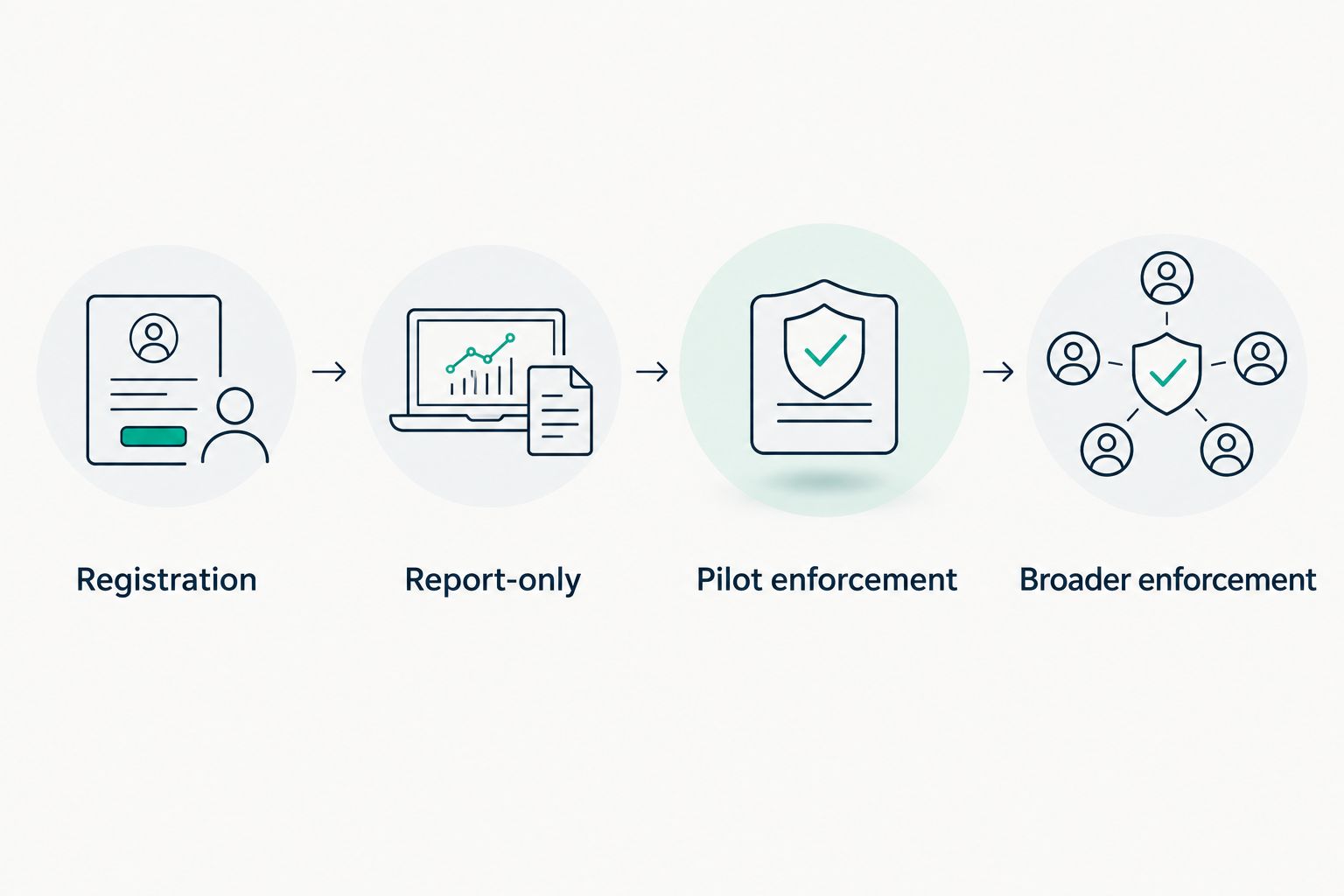
Test policy scope before enforcing access across the business.
Enable and expand enforcement
- Confirm that registration, recovery, application access, and emergency access tests have passed. Assign an owner for rollout incidents.
- Change Enable policy from Report-only to On for the approved pilot scope, then select Save.
- Repeat the sign-in tests under enforcement. A successful report-only evaluation is not proof that users can complete an actual challenge.
- Expand scope in groups matched to support capacity and application readiness. Keep each change attributable to an approved scope update.
- Review failures after each expansion. Roll back the specific new policy change when it causes unintended blocking; do not disable unrelated protections.
Expected result: In-scope access is enforced, legitimate users can complete required authentication, and exceptions have owners and review dates.
DivergeIT cybersecurity services fit businesses that need ongoing operational support, rather than an unattended configuration handoff. Keep deployment responsibilities and service commitments explicit in the engagement scope.
Reassess access whenever a device becomes noncompliant
The adjacent workflow starts with device state rather than initial enrollment. Use it when a previously approved endpoint stops meeting your compliance rules.
Your 2026 operating procedure should connect device remediation, access investigation, and verification:
- Investigate the failing compliance setting in the device-management console. Confirm that the device has checked in and that the status reflects its current condition.
- Remediate the actual failure. Restore the required configuration rather than granting a standing exclusion to make the alert disappear.
- Reevaluate compliance and confirm the updated device state. Then test access and inspect the resulting sign-in record.
- If the device is suspected of compromise, follow incident response procedures. Restoring compliance is not a substitute for investigating compromise or revoking affected sessions where appropriate.
Expected result: The access decision follows an evaluated device state, and support has evidence that remediation worked.
A compliance change does not guarantee that every active session immediately ends. Application behavior, tokens, and supported continuous access evaluation affect when access is reassessed. Test the applications that matter to your business rather than promising instant revocation everywhere.
Troubleshooting
A registered user is still blocked
Open the failed sign-in and inspect the applied policies and authentication details. The registered method might not satisfy the required authentication strength, or another policy might impose an additional condition. Correct the method or policy mismatch; do not assume re-registering the same method will fix it.
A managed laptop appears noncompliant
Check the device's compliance evaluation, last check-in, and the identity presented during sign-in. An unsupported client path or missing device context can prevent the expected device claim from reaching the access decision. Fix the client, enrollment, or compliance issue before creating an exception.
An older application stops connecting
Identify the actual authentication protocol and client. Legacy authentication cannot complete an interactive MFA challenge. Replace the connection with supported modern authentication or redesign the integration; a broad user exclusion leaves an access gap rather than repairing the application.
Users receive repeated prompts
Review overlapping policies, session controls, authentication failures, and the application's session behavior. Do not impose aggressive sign-in frequency without a defined requirement. Repeated prompts create support work and are not evidence of stronger protection.
A service account cannot run its scheduled job
Determine whether the job is using a human user identity. Where supported, move the workload to an appropriate application identity or managed identity with limited permissions. User-focused MFA policies are not a replacement for workload identity controls.
Customize your workflow
Use application sensitivity to determine the next control. Privileged administration needs stronger authentication; sensitive client records need carefully scoped access; external collaboration needs a tested guest access model.
Give every exception an owner, business reason, approval, and expiry. Review application permissions and privileged role assignments alongside authentication: a securely authenticated user can still have excessive access.
For the next 2026 review, ask for failed-access trends, recovery outcomes, open exceptions, and evidence that emergency access still works. Judge the workflow by controlled access and recoverability, not by the number of prompts it generates.
FAQ
What's the difference between MFA rollout and zero trust?
MFA rollout establishes and enforces authentication requirements; zero trust also addresses access scope, device state, privileges, and ongoing evaluation. MFA is a component of zero trust, not its completion criterion.
Can I use this MFA rollout zero trust workflow with Microsoft 365?
Yes, this workflow applies to Microsoft 365 access managed through Microsoft Entra Conditional Access. Confirm the required licensing, administrative permissions, and device-management prerequisites before deployment.
Should I turn on MFA for everyone at once?
Use a tested pilot before expanding enforcement across the business. Verify registration, recovery, emergency access, and application compatibility before adding more users.
Does report-only mode protect users from blocked access?
Report-only mode does not enforce the new policy's access requirements. It records policy evaluations so you can identify scope and readiness problems before enforcement.
Can employees use personal devices with zero-trust access?
Personal-device access depends on your application requirements and access policies. Requiring a compliant device excludes devices that cannot satisfy that condition, so test and document the intended personal-device access path.
Does MFA stop stolen session tokens?
MFA alone does not prevent every misuse of an already issued session token. Address endpoint security, session handling, access evaluation, and incident response as separate parts of the security design.
Who should manage the rollout after deployment?
Assign a named owner for policies, authentication recovery, exceptions, and sign-in investigations. DivergeIT provides managed IT and cybersecurity services for businesses seeking operational support.
One last thing
Test the recovery path with the same care as the sign-in path. A strong authentication requirement loses value when support resets it after a weak identity check. Before closing the rollout, have an authorized tester walk through lost-device recovery and confirm that the process preserves identity verification.