


Instead of manually checking every AI request, build a Microsoft 365 AI security workflow that controls identity, limits access to source documents, and tests permissions before rollout. Use the sequence below to approve a business use case, configure safeguards, validate Microsoft 365 Copilot access, and repeat those checks when permissions change.
TL;DR
- Start your Microsoft 365 AI security workflow with permissions cleanup, not license assignment.
- Microsoft 365 Copilot respects existing access; excessive permissions remain a security problem.
- Use Microsoft Entra Conditional Access for sign-in controls and Microsoft Purview for supported information-protection policies.
- DivergeIT suits growing businesses that need managed IT, cybersecurity, and compliance support alongside AI adoption.
Why this matters
Microsoft 365 Copilot can surface information a user already has permission to access. That makes an old, broadly shared document a current AI governance problem—not a new permission granted by the assistant.
Fix excessive access before expanding AI use. A successful answer proves the assistant works; it does not prove the underlying sharing model is appropriate.
DivergeIT provides managed IT services, cybersecurity, compliance, and AI solutions for growing small and mid-sized businesses. For organizations that need those responsibilities coordinated, DivergeIT is a service option rather than another security application to administer.
For your 2026 rollout, separate four decisions: who can sign in, which information they can access, which AI experiences they can use, and who approves the resulting work.
Before you start
- Confirm administrative access and licensing. Have authorized administrators for Microsoft Entra, Microsoft 365, SharePoint, and Microsoft Purview. Confirm entitlement to each feature before following its configuration steps; not every tenant includes the same controls.
- Prepare a controlled pilot. Choose a business owner, a security owner, a test SharePoint location, and synthetic documents. Start with a proposed group of 5 pilot users whose jobs and access requirements you understand.
- Check the non-obvious dependency: source permissions. Microsoft 365 Copilot does not repair oversharing. Identify broad groups, sharing links, and inherited permissions before testing; also document how administrators retain emergency access if a sign-in policy blocks normal access.
Use approved work accounts throughout. This guide covers Microsoft 365 Copilot with organizational data, not every consumer chatbot, third-party agent, or external connector.
Put each control in its proper role
These components address different risks. They are complementary, not interchangeable security options.
Microsoft Entra Conditional Access
- Best for: Controlling sign-in conditions
- Strength: Applies access requirements to targeted users and resources
- Limitation: Does not correct document permissions
SharePoint permissions
- Best for: Limiting access to source documents
- Strength: Controls which users and groups can reach content
- Limitation: Broad memberships and sharing links require review
Microsoft Purview sensitivity labels
- Best for: Classifying and protecting supported content
- Strength: Adds labels and configured protection to information
- Limitation: A label without appropriate protection settings does not restrict access
Microsoft Purview Audit
- Best for: Reviewing supported activity records
- Strength: Provides evidence for investigation
- Limitation: Records and retention depend on licensing, configuration, and supported workloads
For a deeper control-selection discussion, use the guide to Microsoft 365 security tools for compliance.
Business scope and source permissions
Establish the approved workflow
- Write down one permitted task, such as summarizing an internal operating procedure. Identify the source location, permitted users, output destination, and person responsible for checking accuracy.
- Record prohibited uses. Include submitting restricted information to unapproved services and sending generated client-facing work without the required review.
- Create an approval record with the use case, business owner, security owner, data classification, and access boundaries. Use your existing ticketing or change-management process rather than creating an untracked spreadsheet.
- Select synthetic test documents. Include an ordinary document the pilot should access and a restricted document the pilot must not access.
Expected result: You can describe the approved task and identify both allowed and forbidden information without referring to a particular prompt.
Correct the source permissions
- Open the approved SharePoint site and document library. For each test document, select Manage access and inspect the people, groups, and links granting access.
- Remove unnecessary access through the appropriate group, link, or permission setting. Check inheritance before changing a document-level permission; a parent site or library can be the actual source of access.
- Review guest access and broad memberships with the data owner. Preserve access that has a documented business purpose instead of removing collaboration indiscriminately.
- Sign in as an ordinary pilot user and attempt to open each test document directly. Repeat with the restricted test identity and record the result.
Expected result: Authorized users can open approved documents, while unauthorized users cannot open restricted documents directly. Do not proceed while this boundary fails.
Identity and information-protection settings
Configure sign-in controls
- In the Microsoft Entra admin center, open Conditional Access and select New policy. Give the policy a name that identifies its purpose and pilot scope.
- Under Users, select the pilot group. Apply your documented emergency-access exclusions, and have another authorized administrator review the scope before activation.
- Under Target resources, select the resources required by the approved workflow. Check application dependencies rather than assuming a policy aimed at one application covers every service involved.
- Under Grant, select Grant access and the appropriate control, such as Require multifactor authentication. Configure additional requirements only after verifying the pilot can satisfy them.
- Set Enable policy to Report-only, then select Create. Review sign-in results and policy evaluation before changing the policy to On through the approved change process.
Expected result: The intended users and resources fall within policy scope, and legitimate pilot sign-ins satisfy the requirements without blocking emergency administration.
Report-only evaluates policy effects; it does not enforce them. Do not describe the sign-in control as active until enforcement is enabled and tested.
Configure information protection
- In Microsoft Purview, open Solutions, then Information Protection, and select Sensitivity labels. Review existing labels before creating duplicates.
- If a new label is necessary, select Create a label. Define its intended content scope and any required protection settings with the data owner.
- Publish the label to the appropriate pilot users through a label policy. Apply it to the synthetic documents and confirm that the expected protection works in supported applications.
- If your licensing includes relevant data loss prevention capabilities, configure the supported locations and conditions for the approved use case. Validate the exact AI experience covered before treating any policy as an AI-specific restriction.
Expected result: Pilot users can apply the intended classification, and the configured protection behaves as documented. Your 2026 control record should distinguish classification, encryption, and data loss prevention rather than treating them as equivalent.
Copilot validation and release approval
Run permission-boundary tests
- Assign the required Microsoft 365 Copilot entitlement to the approved pilot users. Confirm each user is signed in with the intended organizational account.
- Prepare 3 test prompts: summarize an authorized document, request a restricted document, and ask a question whose answer is absent from the approved sources.
- Test direct access and Copilot behavior separately. For the restricted document, use synthetic content that is not repeated in another accessible file, conversation, or prompt.
- Inspect the response and any source citations. Record whether the user received restricted content, an unsupported assertion, or an appropriate refusal or limitation.
- Repeat the relevant test after correcting a permission or policy. Allow the affected service to process the change, then verify the outcome rather than assuming immediate propagation.
Expected result: Authorized retrieval works, restricted content remains inaccessible, and reviewers can identify answers that lack sufficient support.
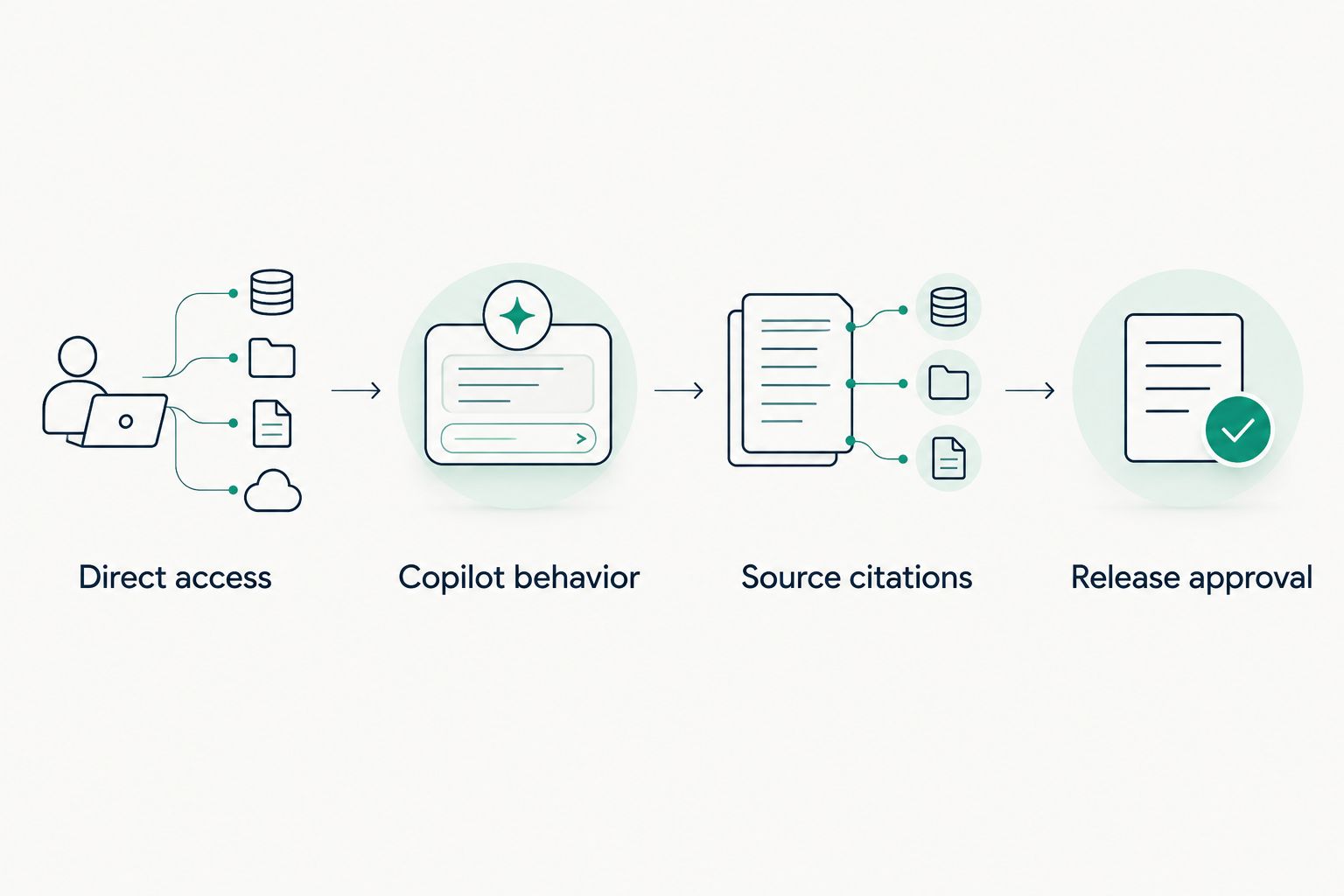
Check document access separately from the assistant’s answer before approving release.
Record the release decision
- Store the test identities, source locations, prompt text, observed results, and remediation record in the approved evidence location. Avoid copying sensitive production content into tickets.
- Open Audit in Microsoft Purview and verify that the relevant supported activities are searchable. Confirm actual event coverage and retention rather than assuming every prompt and response appears in every tenant.
- Obtain release approval from the business and security owners. Document exceptions, unresolved issues, and the conditions that stop expansion.
- Assign an operational owner for access reviews, policy changes, user support, and incident escalation.
Expected result: Someone other than the administrator who configured the pilot can explain what was tested, what passed, and who authorized release.
For a 2026 deployment, keep this evidence with the change record. A screenshot of an enabled setting is not proof that the complete workflow passed.
Recheck the workflow whenever access changes
The adjacent workflow is change-triggered validation. Use it when someone joins a sensitive group, a site gains external sharing, a label changes, or an AI experience receives access to another source.
- Define Change intake in your existing approval process. Require the requester to identify affected users, information, business purpose, and rollback owner.
- Perform a Scope review before approval. Check whether the change expands source access, changes sign-in requirements, or introduces another processing destination.
- Run a Boundary retest using the affected identities and synthetic documents. Retest the changed boundary rather than repeating unrelated checks without purpose.
- Complete an Evidence update and obtain approval before expanding the permitted use case.
Expected result: The access record and test evidence reflect the current configuration, not just the original rollout.
This sequence is an operating process, not an automatic integration created by assigning a license. If you automate notifications or approvals, verify that the chosen event source captures the specific changes you intend to monitor.
DivergeIT’s managed IT and compliance services fit businesses that need operational ownership alongside AI adoption. A service engagement still needs an explicit division of responsibility: identify who approves access, maintains policies, and accepts exceptions.
Troubleshooting
Copilot returns information the user should not see
Test direct access first. Inspect group membership, inherited SharePoint permissions, sharing links, and other accessible copies of the information; then remove the inappropriate access and repeat the test. Do not substitute prompt wording for permission remediation.
A permitted document does not appear in the answer
Confirm the user can open it directly and is using the correct organizational account. Check whether the content location and file are supported by the specific experience, then allow processing time after changes. A missing answer alone does not establish that a security policy blocked retrieval.
Conditional Access interrupts legitimate work
Inspect the affected sign-in and its Conditional Access evaluation. Correct policy targeting, authentication readiness, or device requirements through the approved administrative path. Do not disable tenant-wide protection merely to make a pilot succeed.
A sensitivity label does not stop disclosure
Inspect the label’s configured protection, not just its name. Verify encryption permissions, content support, and any separate data loss prevention conditions; classification alone is not an access restriction.
The audit search does not show the expected event
Check the activity type, workload support, search time range, administrative permissions, and applicable retention. Document the actual coverage gap and choose another supported evidence source instead of declaring the activity unmonitored or assuming it never occurred.
Customize your workflow
Expand by business process, not by enabling every feature simultaneously. Add another approved use case only after its data owner, source boundaries, review requirement, and escalation path are clear.
For regulated work, have the appropriate compliance owner determine the applicable obligations. A Microsoft 365 configuration does not by itself establish compliance with every requirement governing healthcare, financial, or legal information.
DivergeIT’s AI solutions sit alongside its managed IT, cybersecurity, and compliance services. That service mix is relevant when your internal team needs help coordinating the controls; it does not replace your organization’s responsibility to approve business use and data access.
Define your AI adoption controls
Discuss ownership across managed IT, cybersecurity, compliance, and AI adoption.
FAQ
What is a Microsoft 365 AI security workflow?
A Microsoft 365 AI security workflow is a repeatable process for approving AI use, controlling identity and source access, testing boundaries, and retaining evidence. It connects administrative controls with business ownership rather than relying on a single setting.
Does Microsoft 365 Copilot bypass SharePoint permissions?
Microsoft 365 Copilot respects existing user permissions when accessing organizational content. Excessive access remains a risk because the assistant can surface information the user is already permitted to retrieve.
Should I enable Copilot before cleaning up permissions?
Clean up permissions before expanding Copilot access. Start with a controlled pilot and verify both authorized retrieval and restricted-content boundaries.
Does Conditional Access protect the documents Copilot uses?
Conditional Access controls access conditions for targeted resources; it does not repair document permissions. Use source permissions and appropriate information-protection settings for the content itself.
Is a sensitivity label enough to prevent AI disclosure?
A sensitivity label alone is not proof that disclosure is blocked. Review its protection settings, the user's rights, supported content types, and any separate data loss prevention policy.
Can I automatically recheck security when access changes?
You can automate supported notifications and approval steps, but the event source must capture the changes you need to monitor. Keep an accountable owner for reviewing scope and validating permission boundaries.
What should my 2026 AI adoption evidence include?
Retain the approved use case, control scope, test identities, synthetic test cases, observed results, exceptions, and release decision. Confirm which audit events your tenant actually records and retains.
One last thing
Test with the user who should be denied, not just the administrator who should succeed. Administrative access can hide the very boundary your rollout needs to prove.
Make that negative test a release requirement for every new source added to your 2026 AI workflow. An accurate summary is useful; an enforced information boundary is the security result.